Trip Pricing
This part of the cost calculator is intended to help you accurately price the cost of a trip for a medicare rider using a least path calculation. In the current release trip pricing is enabled for a single operator running a single trip. In the next release recurring and multi-passenger trips will be available.
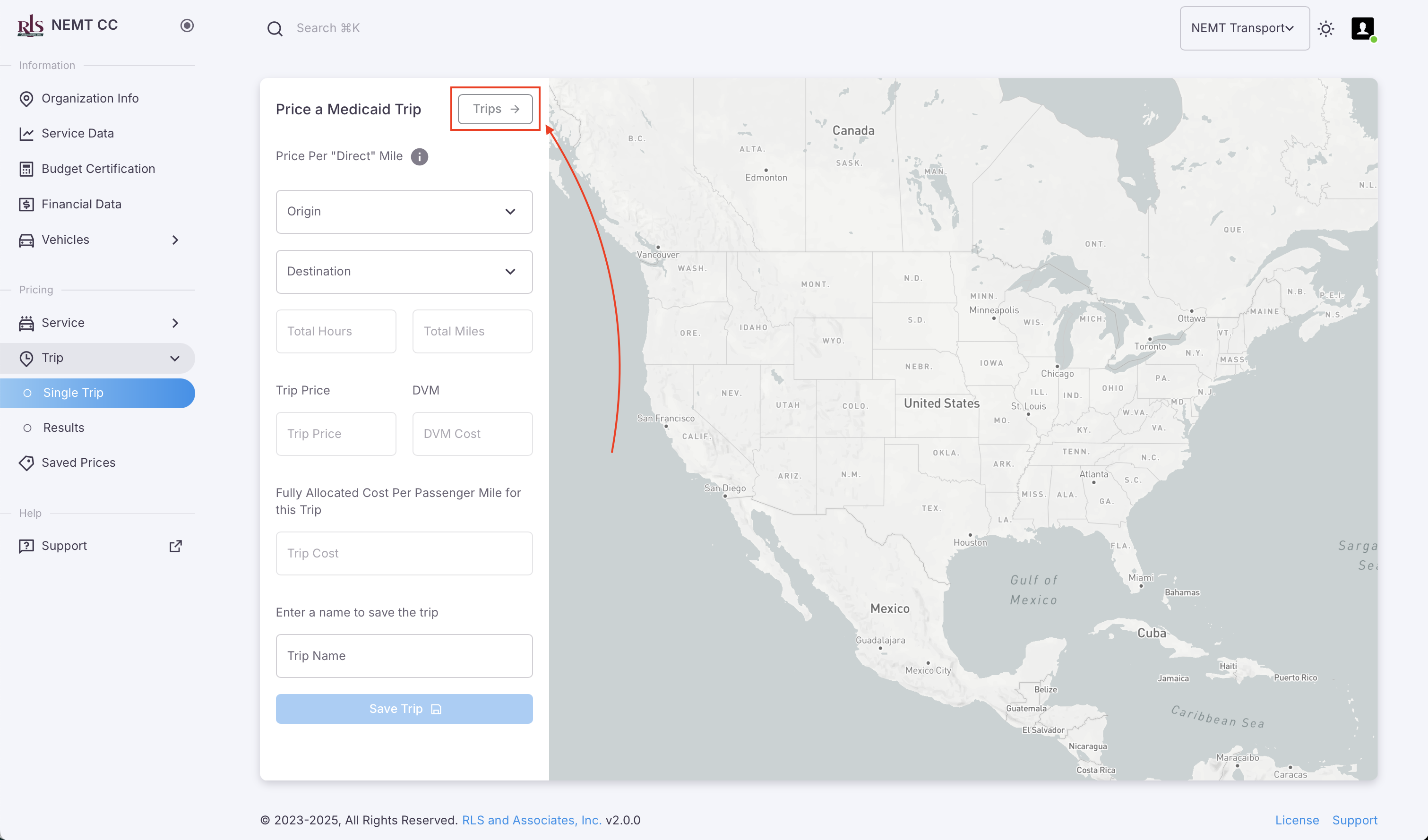
To access Trip Pricing, select Single Trip in the navigation menu as shown in the image below.
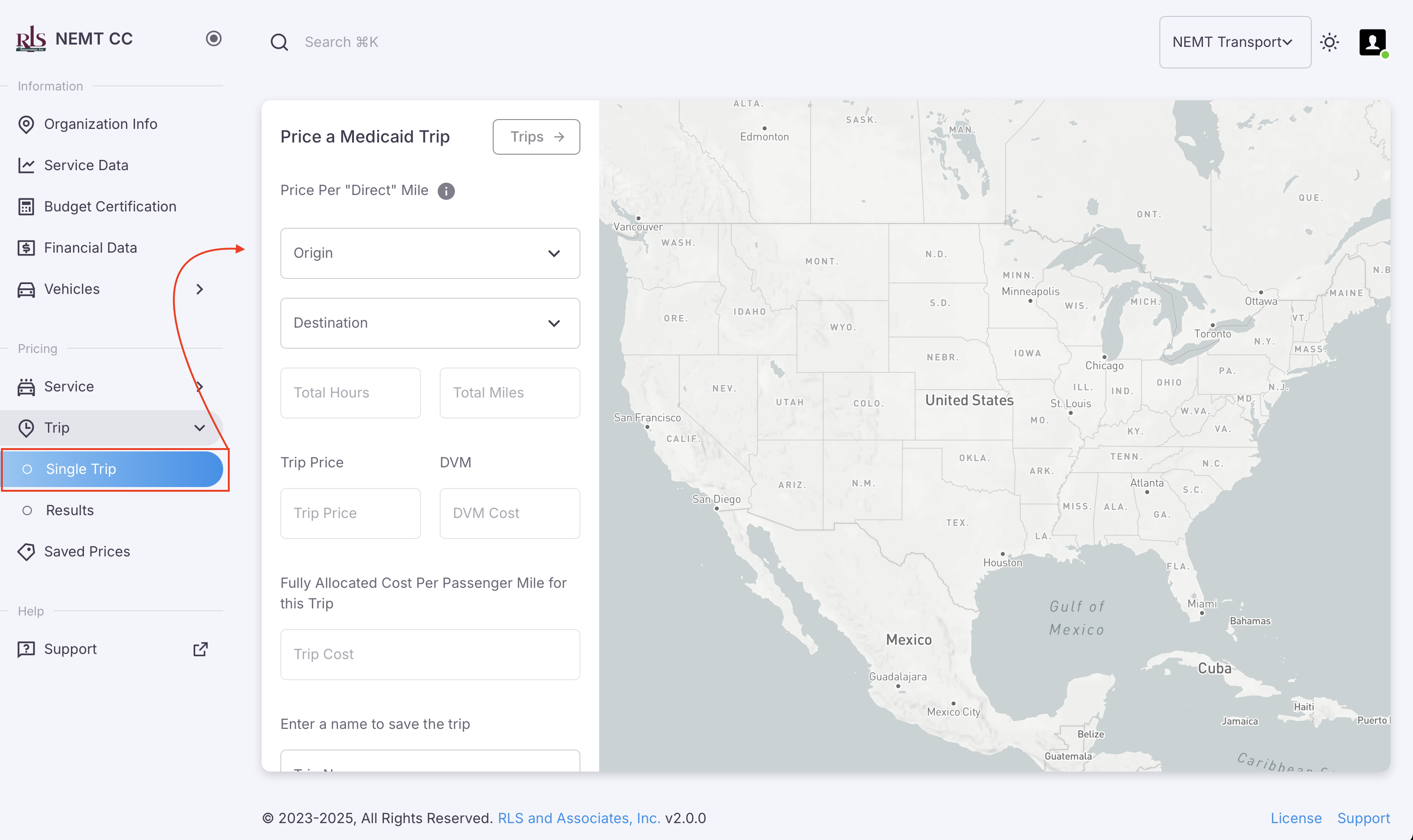 Single Trip Costing accessed from he navigation menu
Costing a trip
To run a Trip Cost on the NEMT CC app one needs to only fill in three pieces of information;
- Trip Origin
- Trip Destination
- Trip Name
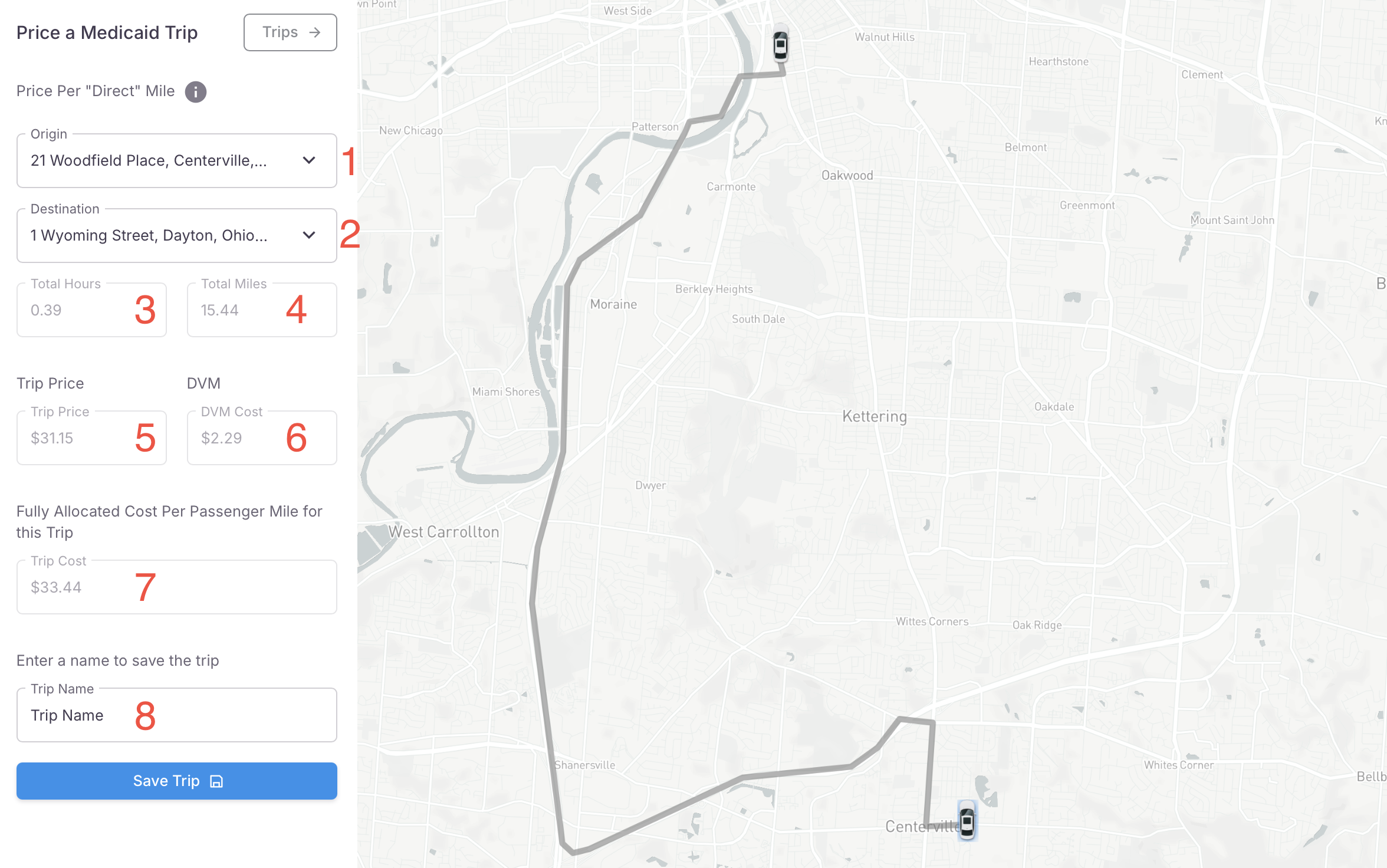
In the image shown below, the various input fields and data generated by the application are explained in more detail.
- Origin of Trip
- Destination of the Trip
- Total Hours of the Trip - field will auto-populate once the Origin an Destination have been input
- Total Miles of the Trip - field will auto-populate once the Origin an Destination have been input
- Trip Price - field will auto-populate once the Origin an Destination have been input
- Direct Vehicle Mile Cost - field will auto-populate once the Origin an Destination have been input
- Fully Allocated Cost of the Trip - field will auto-populate once the Origin an Destination have been input
- Unique Name of this trip
- Save the Trip
Viewing previously run trips
There are multiple ways that one can view a previously run trip on the NEMT CC.
- From the trip pricing screen
- By accessing
- Trip > Results from the navigation menu
- Saved Prices from the navigation menu
Previously run trips - Pricing Screen
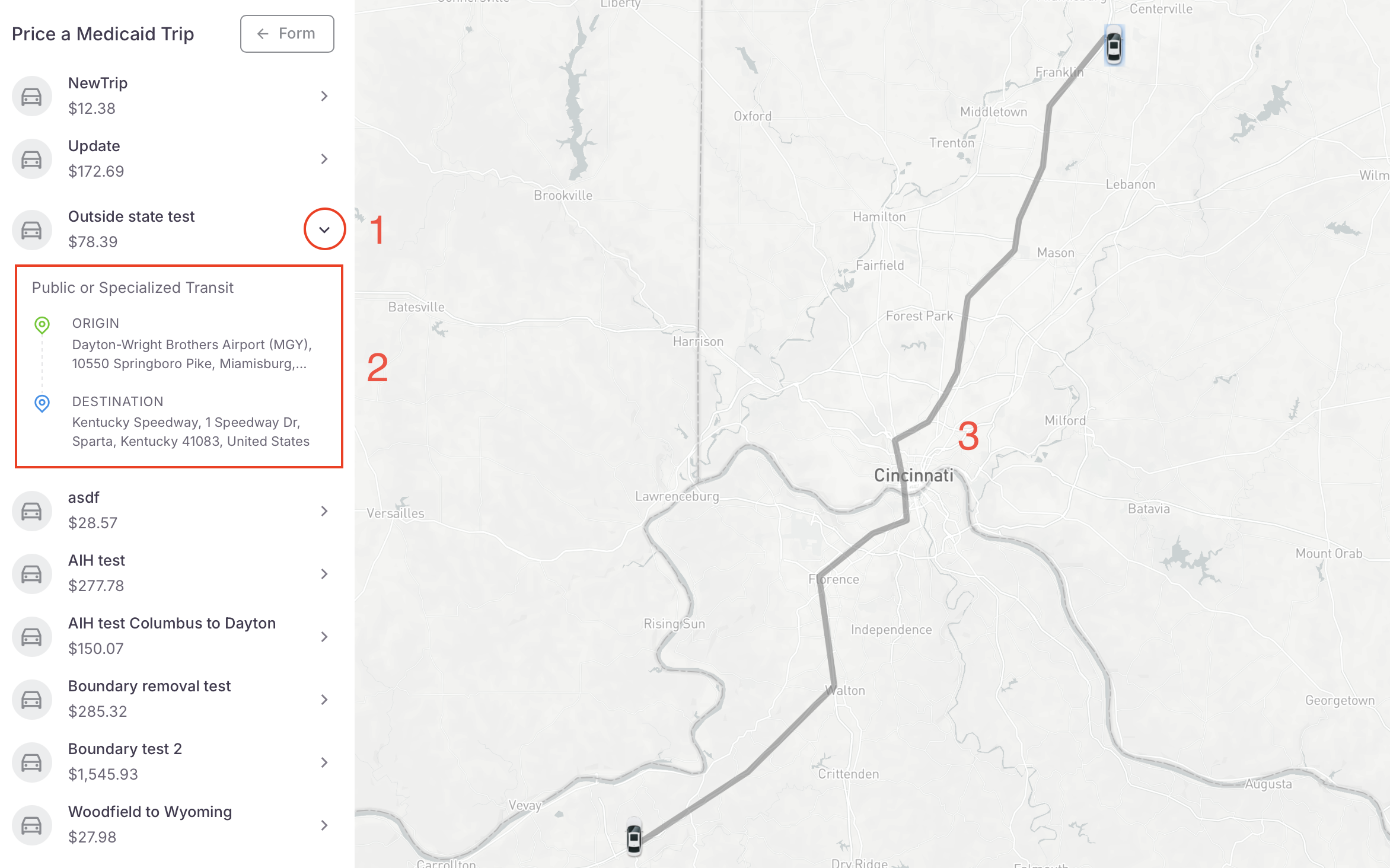
Previously run trips are easily accessible from the Trip Pricing page. To view these trips, please follow the steps outlined below.
- Click the 'Trips' button located in the top right of the input form
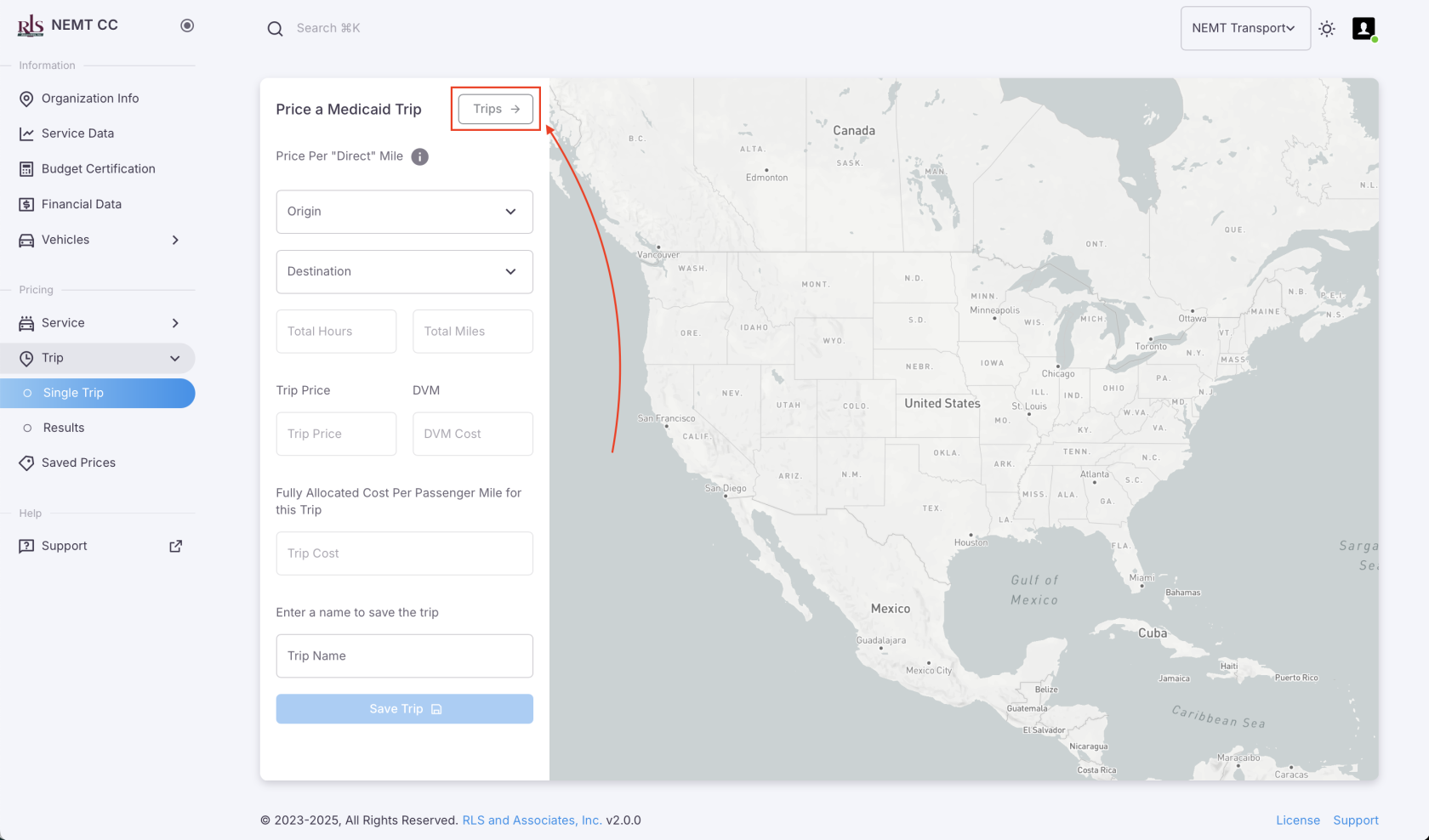
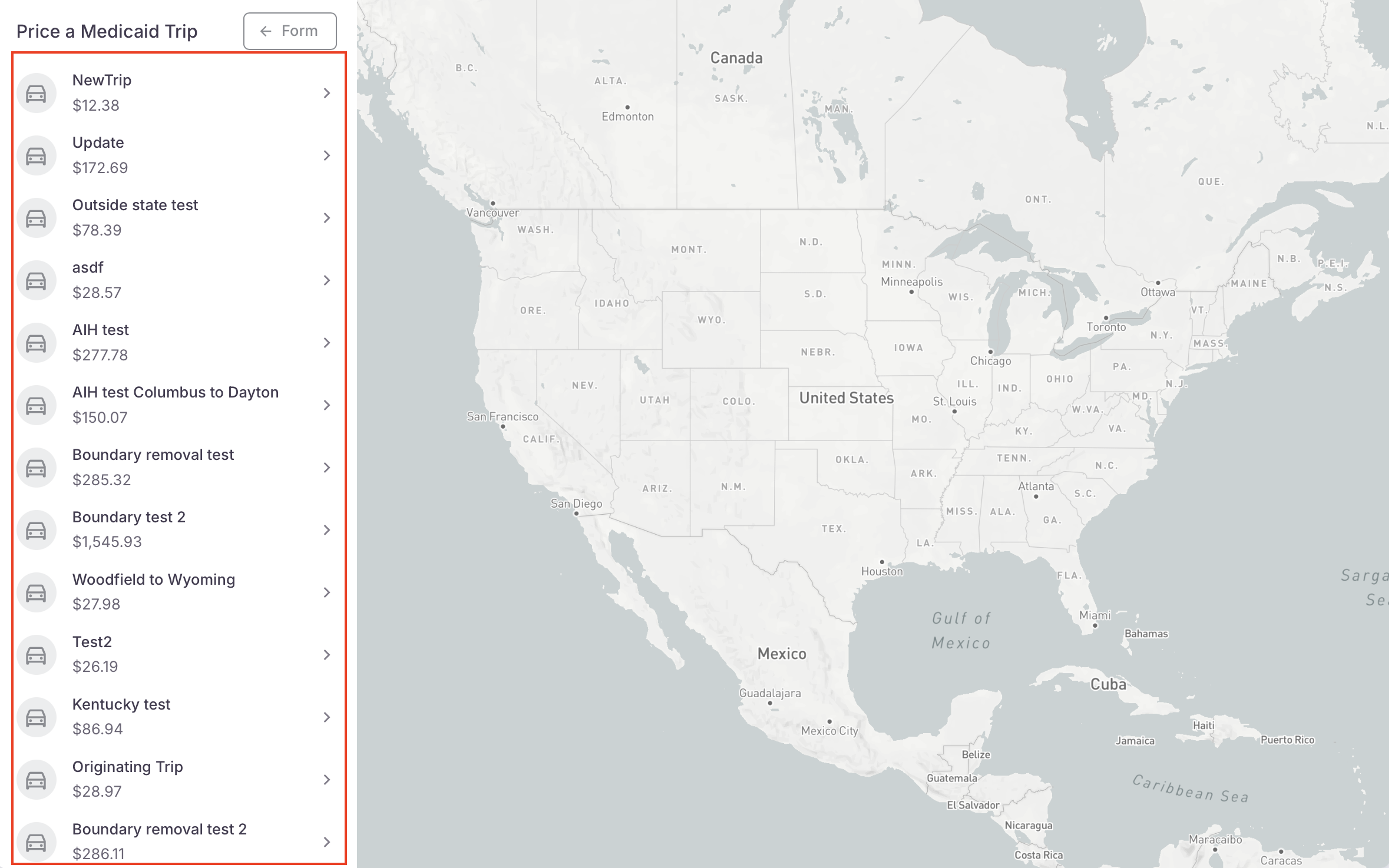
- This will bring up a list of the most previously run trips on the application
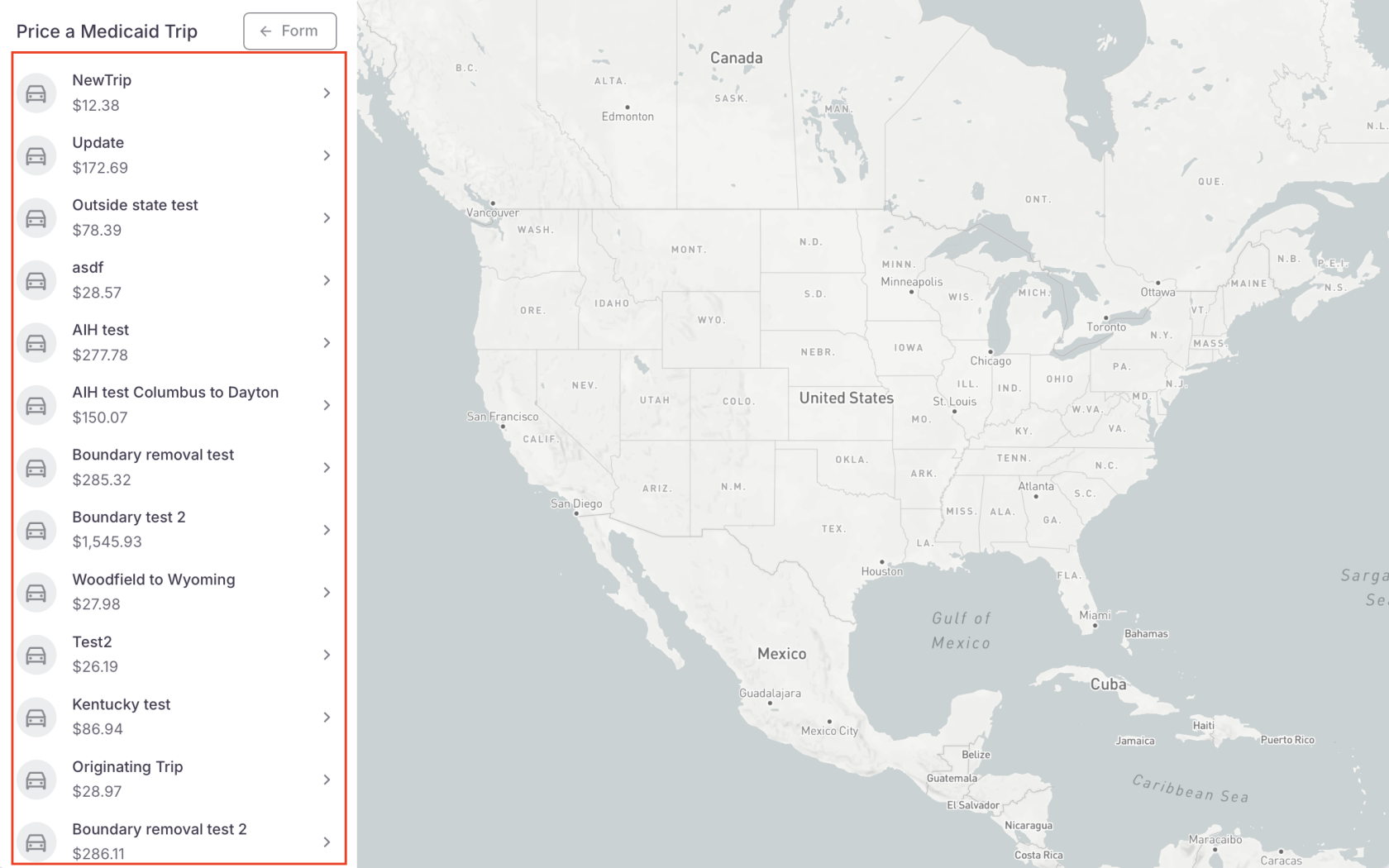
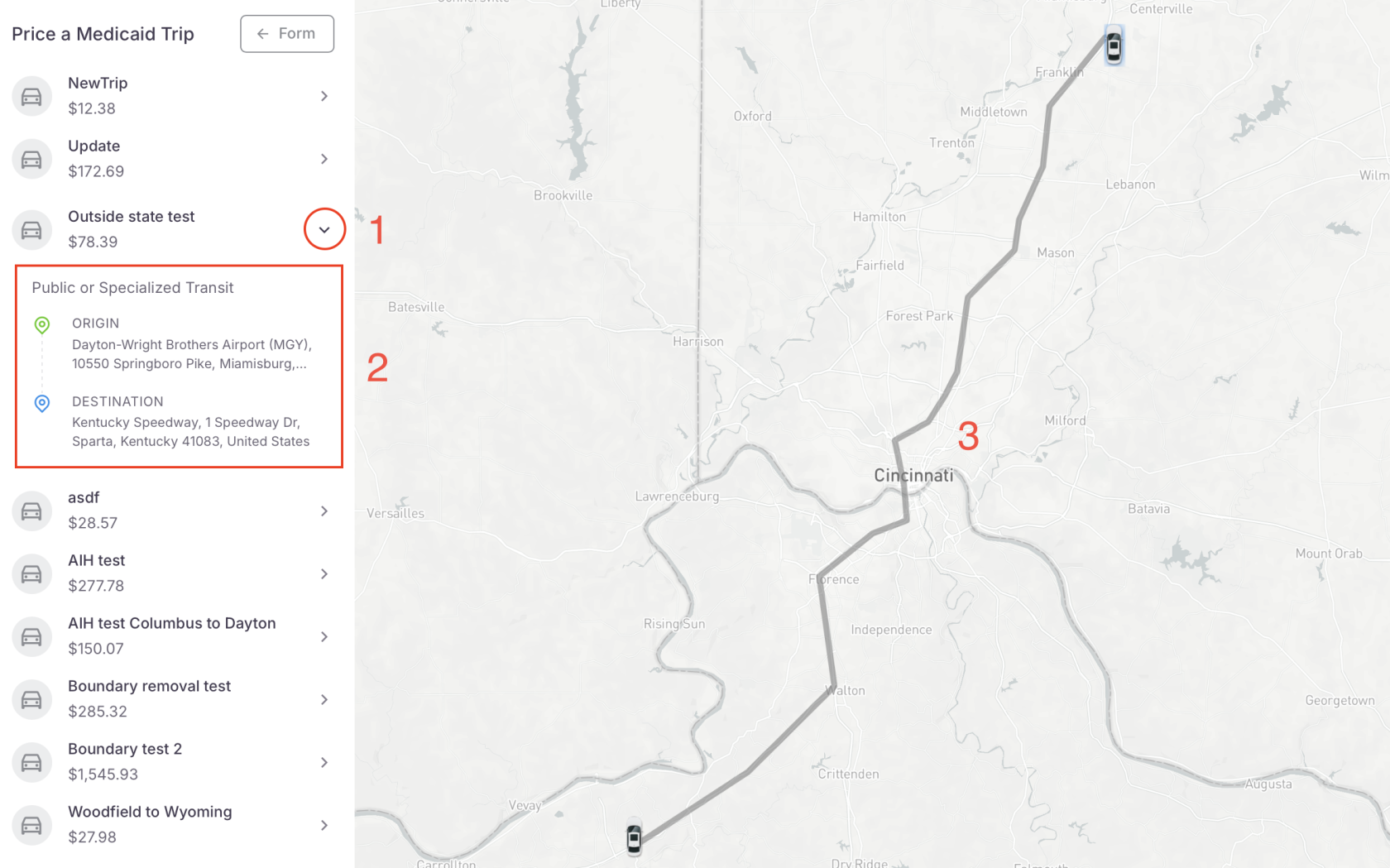
- Click the arrow next to the trip you want to view
- Click the arrow next to the trip you want to view
- The Trip details will show, Origin to Destination
- The map will highlight the suggested route
Previously run trips - Navigation Menu, Trip > Results
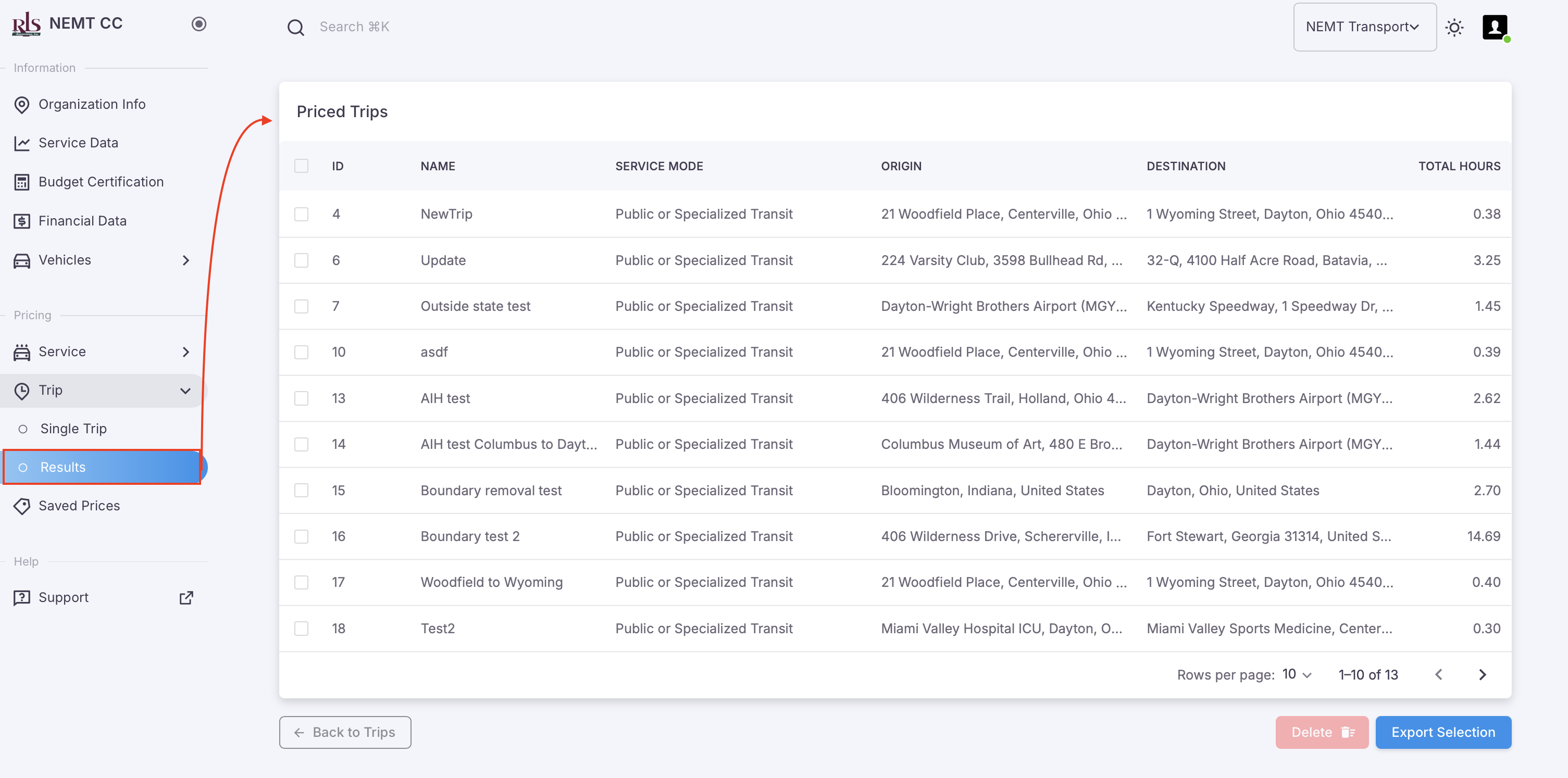
Table and Reporting Options
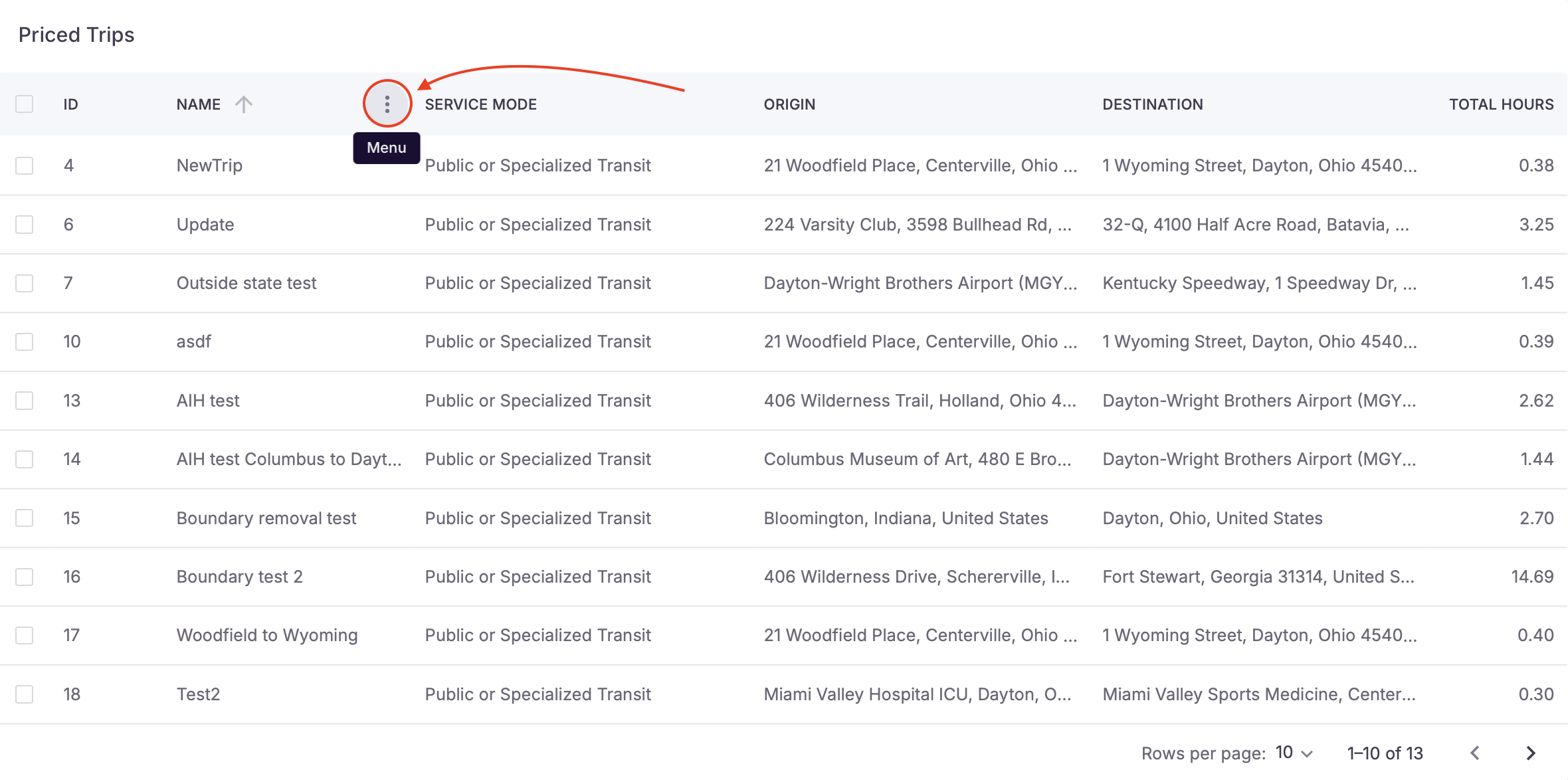 Reporting Menu Options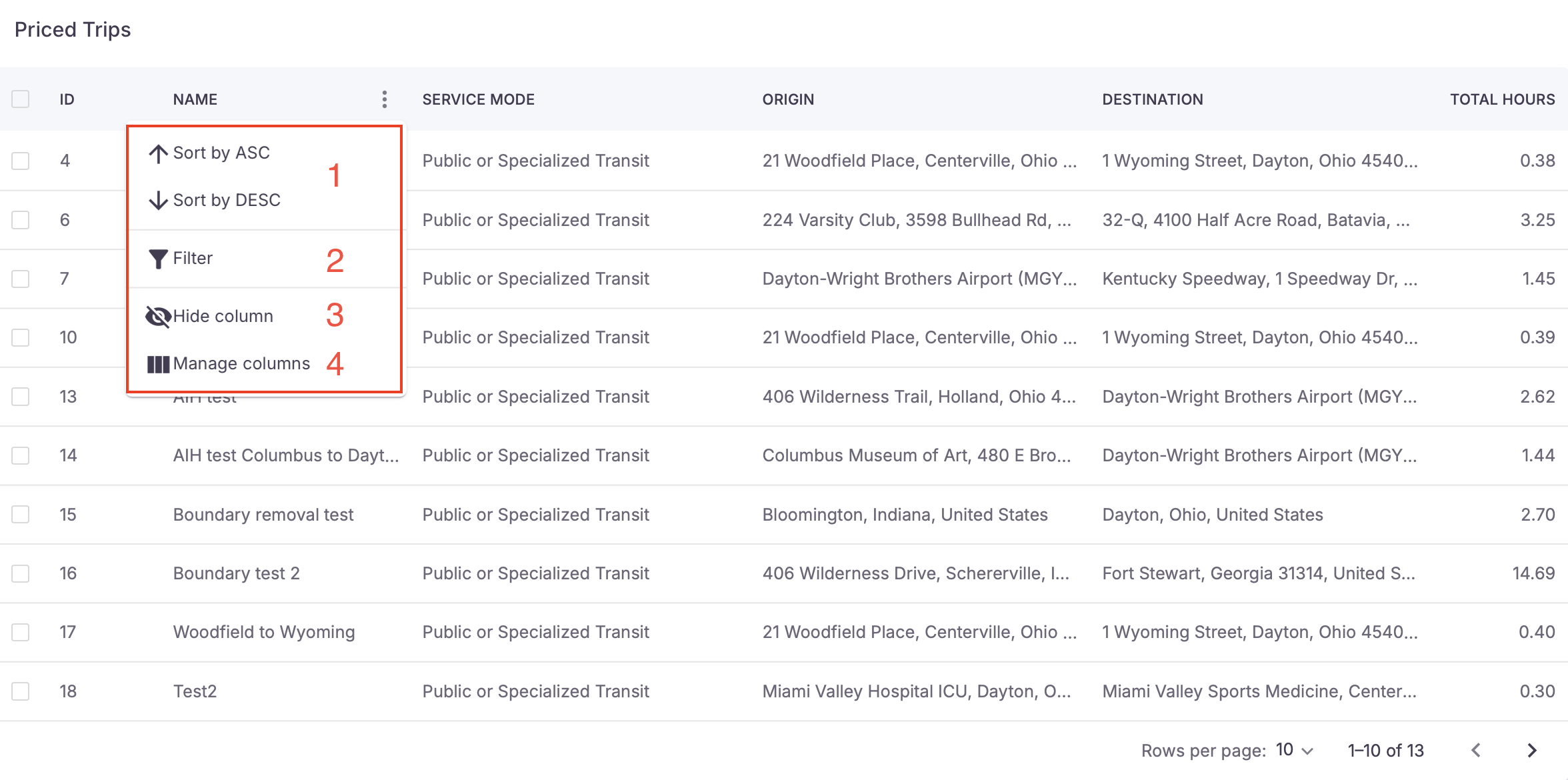
- Sort column; ASC & DESC
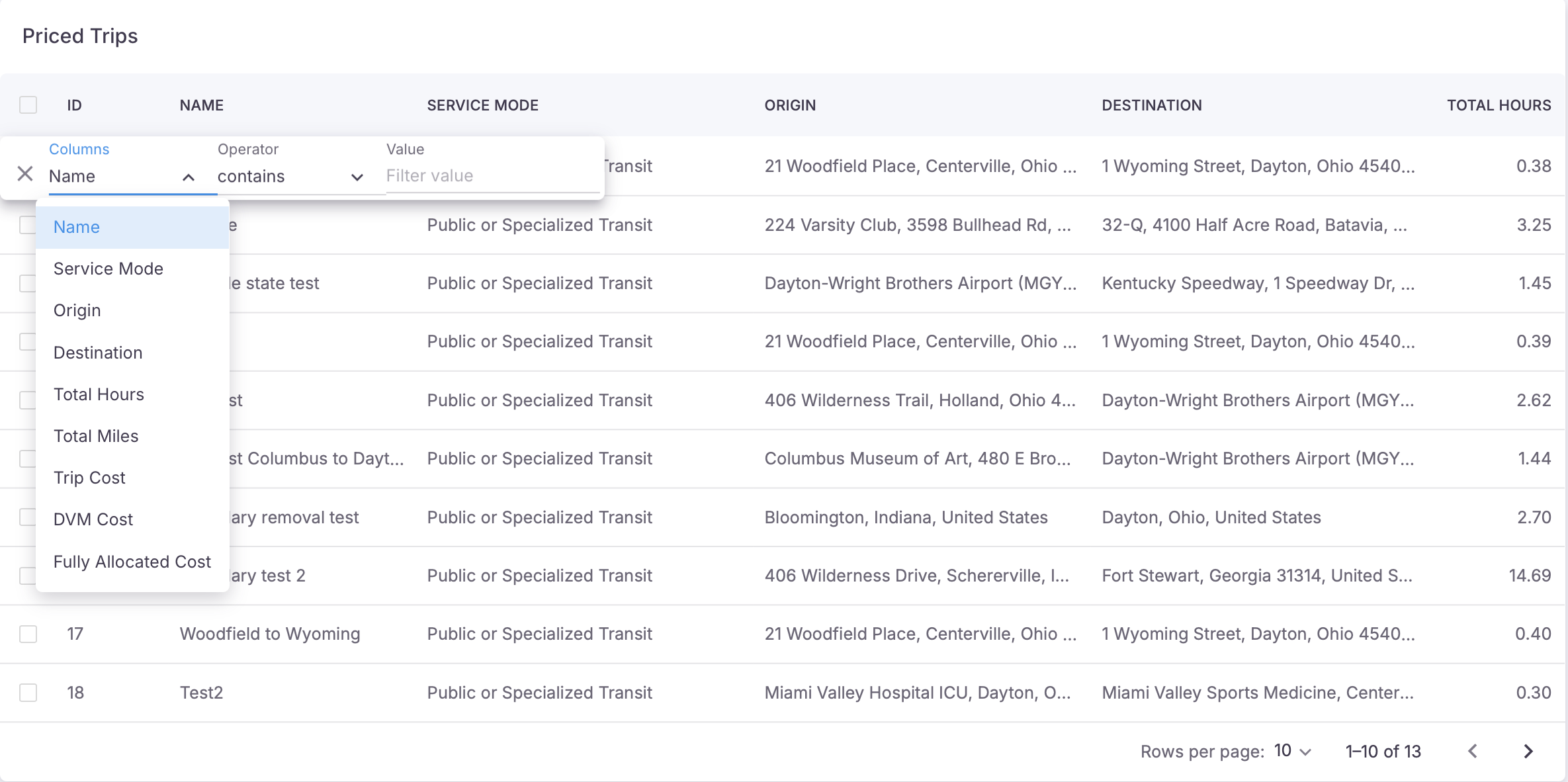
- Filter; has many options available to users. As shown in the image below, columns can be filtered by;
- Service Mode
- Origin
- Destination
- Total Hours
- Total Miles
- Trip Cost
- DVM Cost
- Fully Allocated Cost
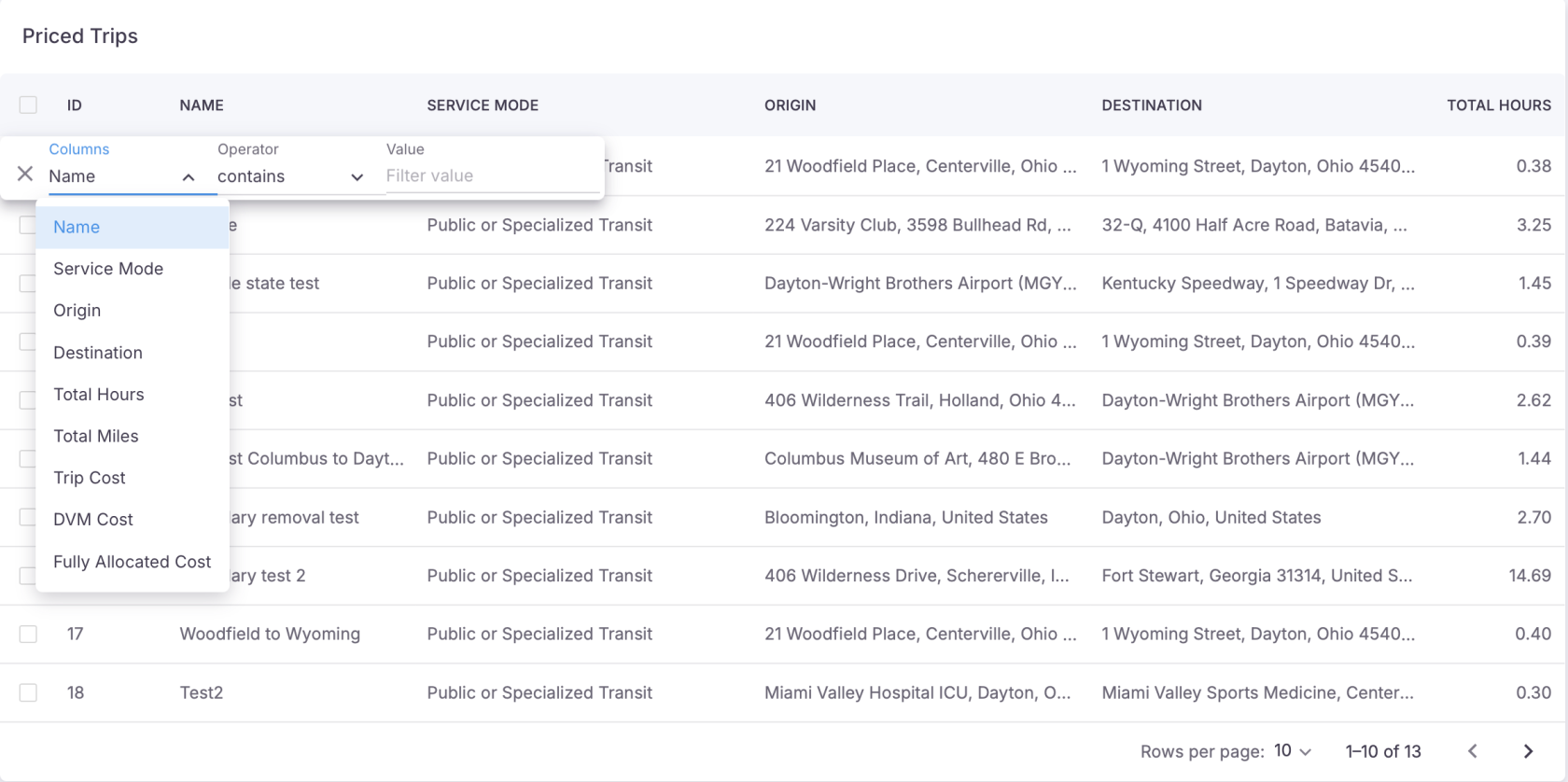
- Data can further be filtered by adding further whether the column;
- Contains
- Does not contain
- Equals
- Does not equal
- Starts with
- Ends with
- Is empty
- Is not empty
- Is any of
- Hide column; Select to hide the column of data
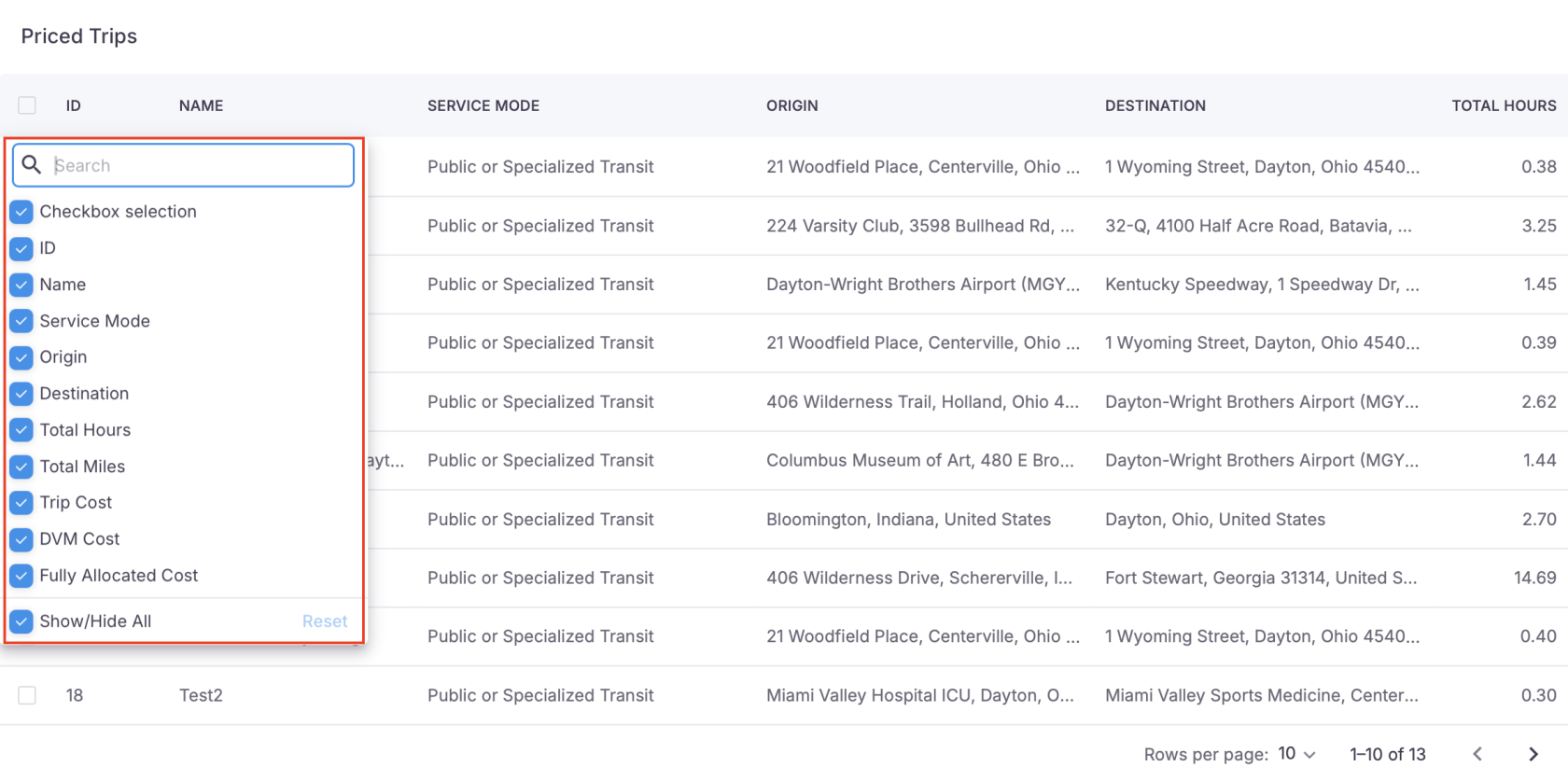
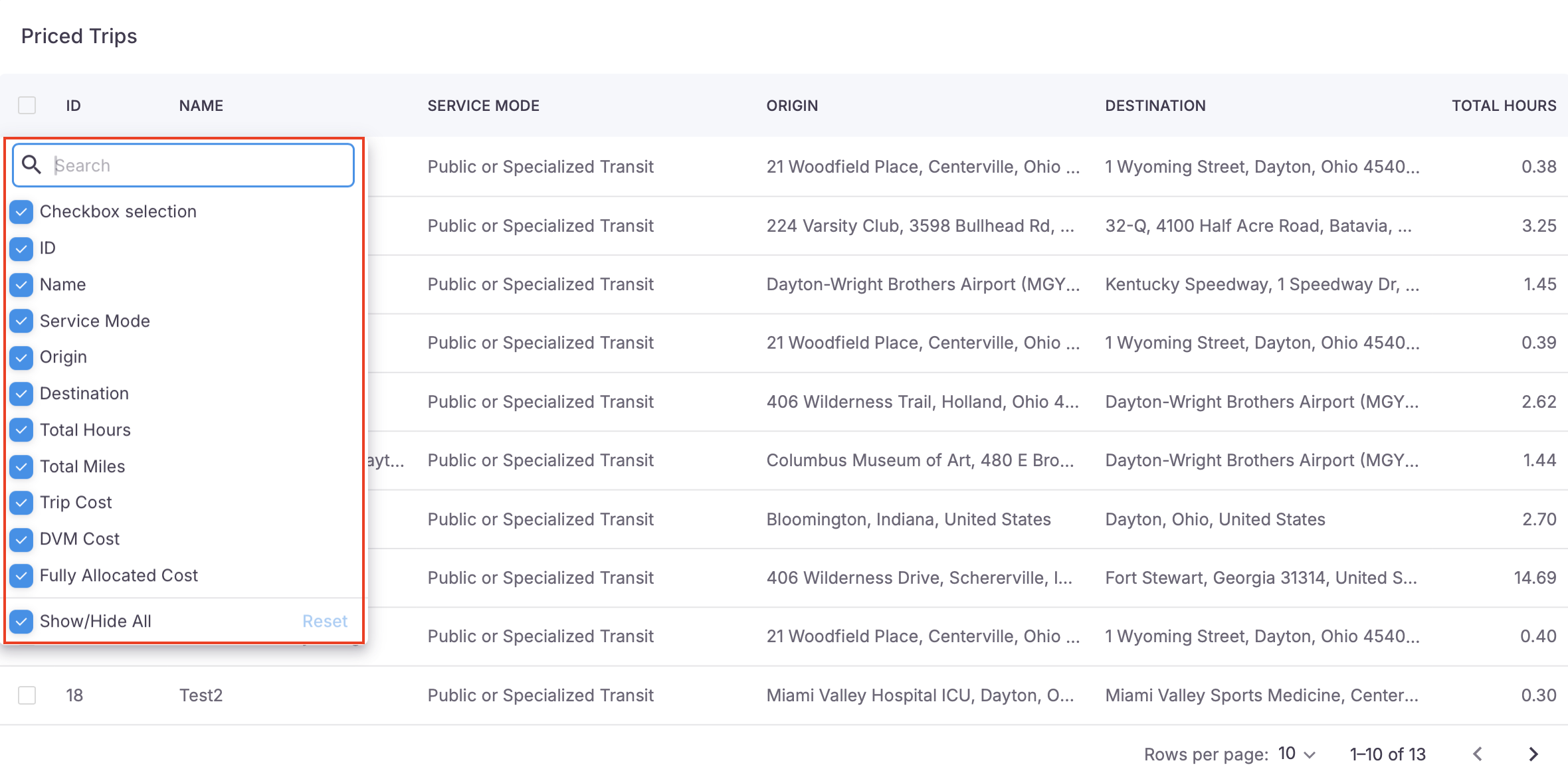
- Manage columns; Here the user can select what data sets they want displayed in each column by selecting or deselecting the desired field of data.
Exporting Data
All previously recorded trips and individually selected trips are able to be exported from the NEMT CC application. To export data, please follow these simple steps;
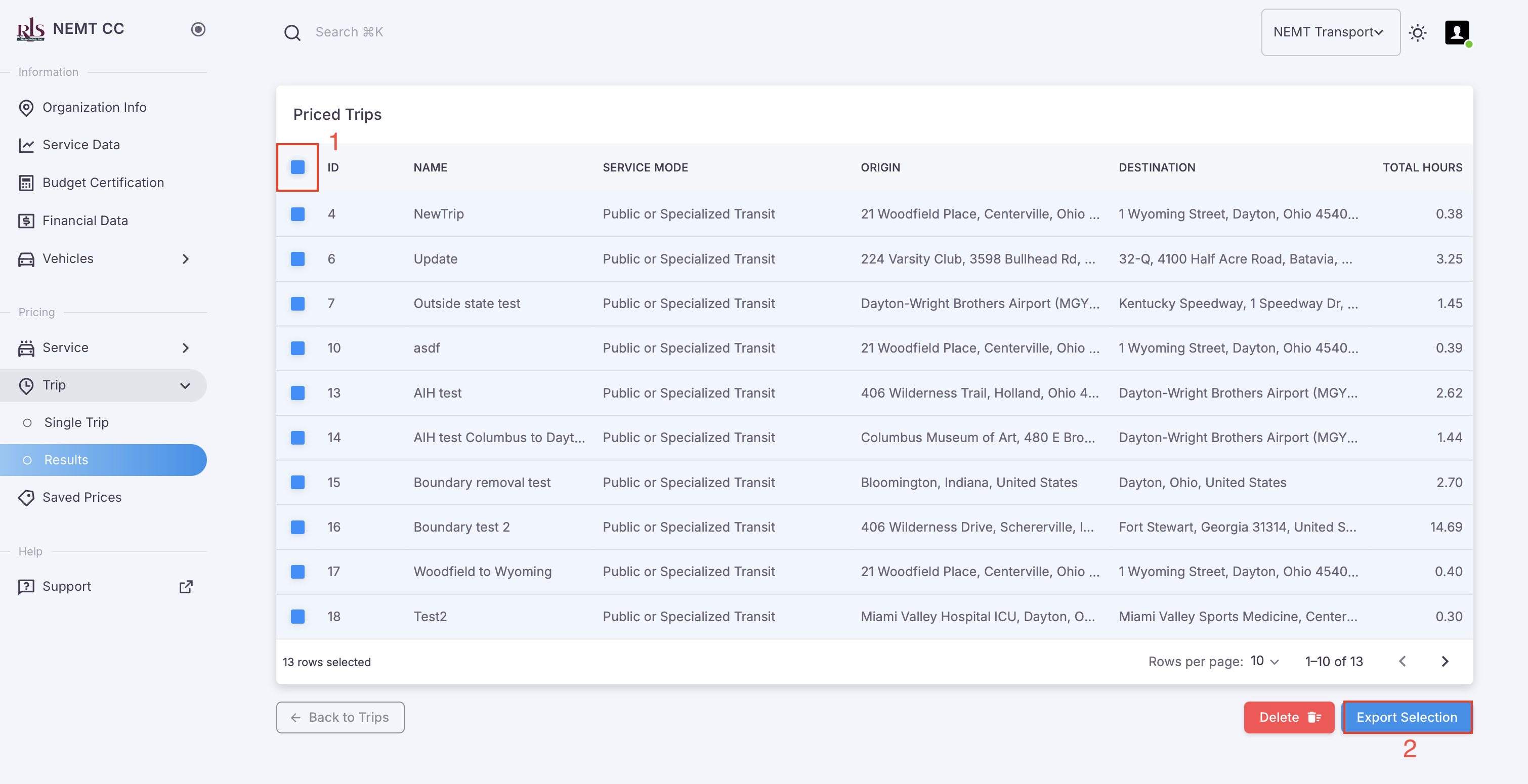
- Select the data you want to export; to select all, click the checkbox at the top of the table field as shown in image below #1.
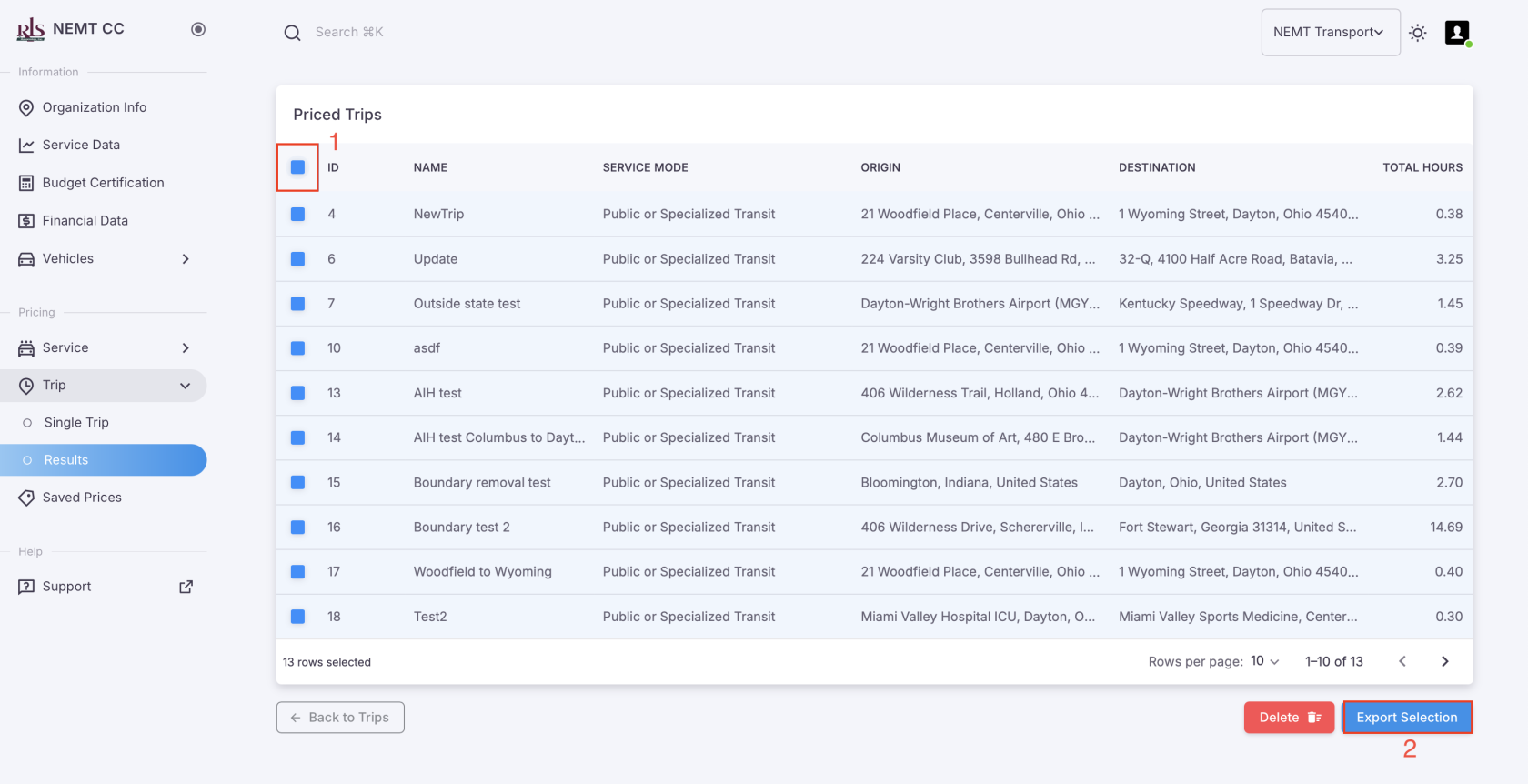
- Once you have selected the records to export, click Export Selection located In the bottom right of the screen. Image above #2.
Previously run trips - Saved Prices
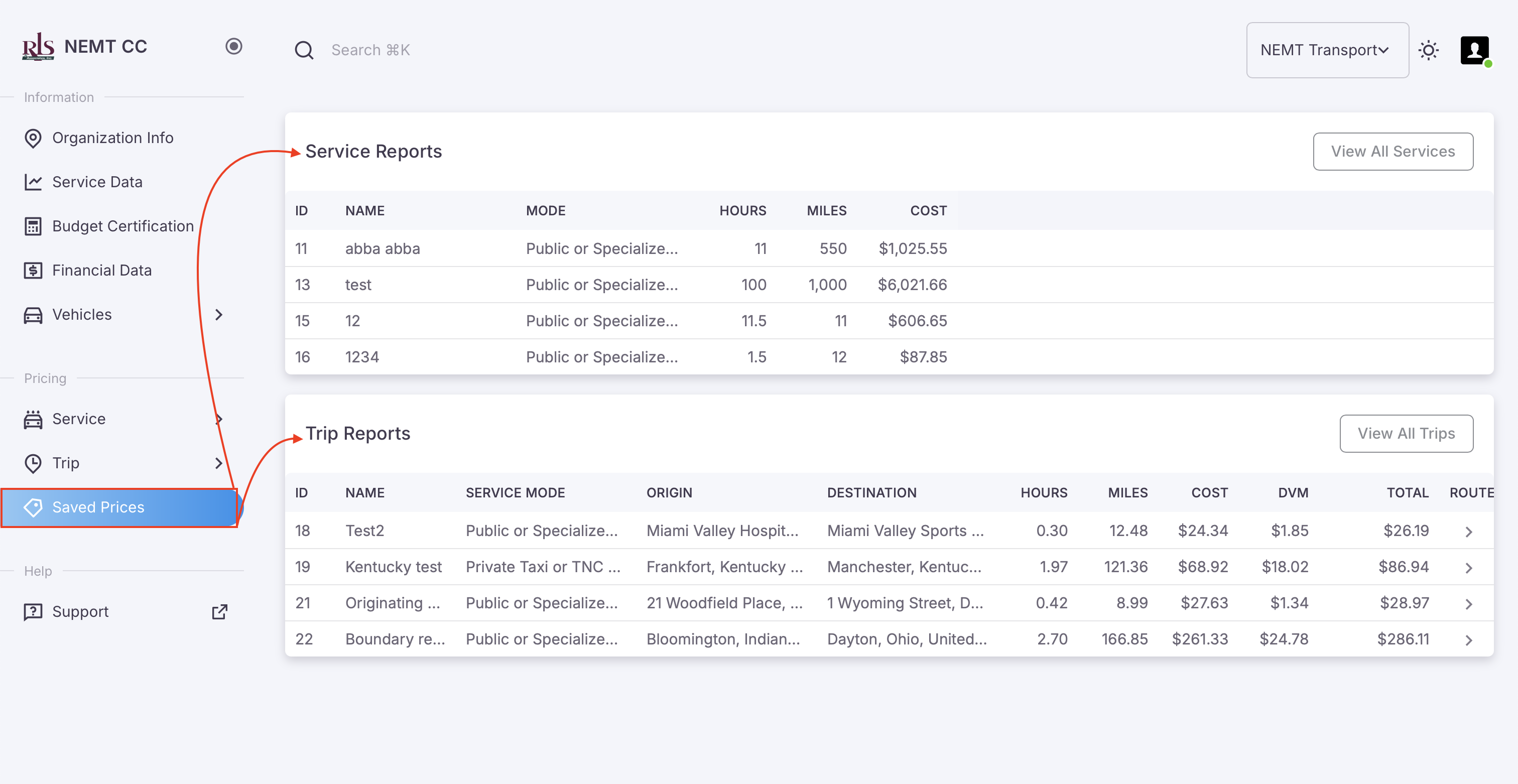
Quickly access the data from these records or click the button in the top right of each table to access the richer tables under each category labeled, Results in the navigation menu. Image shown below.